
Home > Blog >
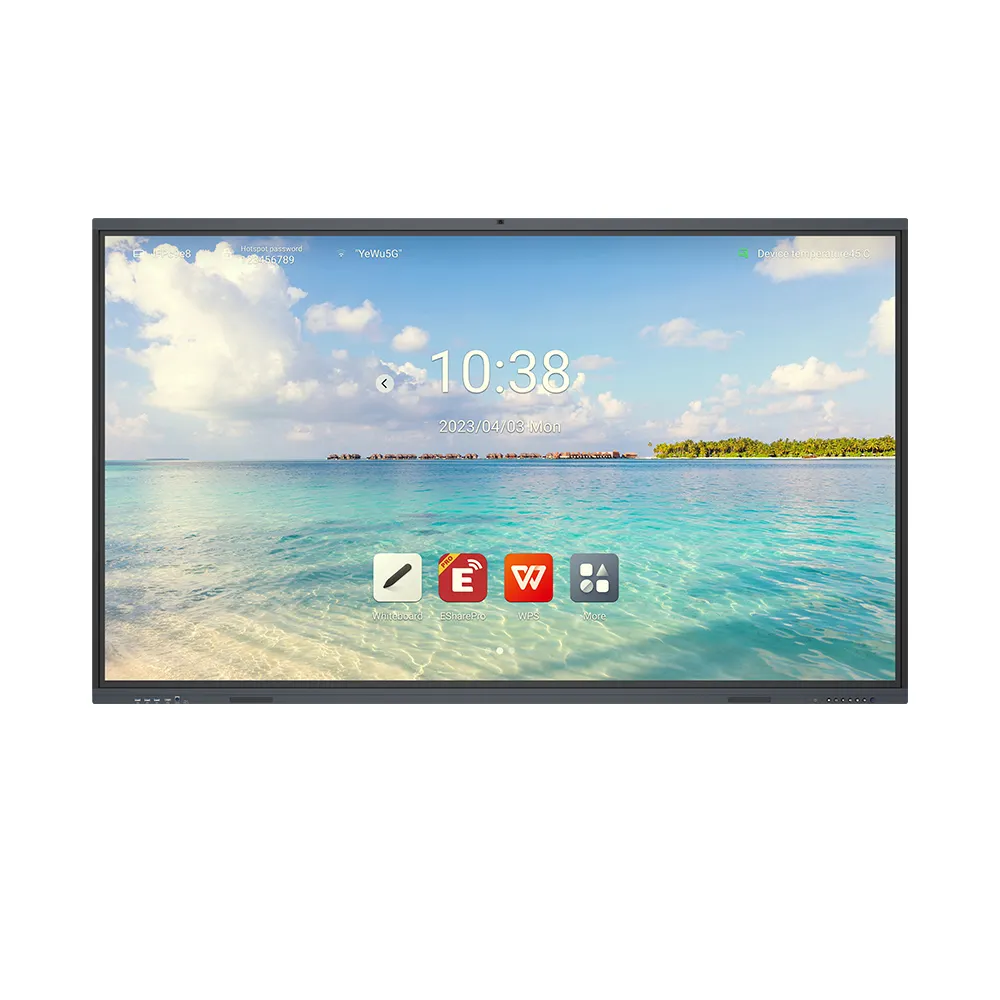
A 100-Inch Interactive Whiteboard is a major investment for any modern workspace. Consequently, you must treat its surface with extreme care. Many users accidentally ruin their screens by using the wrong tools. However, keeping the glass pristine is actually quite simple.
In this guide, we reveal the safest methods for interactive whiteboard cleaning. We will help you avoid costly scratches and sensor malfunctions. Therefore, follow these steps to keep your display shining like new.
Modern touchscreens use delicate anti-glare coatings and infrared sensors. Because of this, harsh chemicals can cause permanent haze. Dirt and oils also reduce the accuracy of your touch inputs.
Regular digital whiteboard maintenance ensures a smooth user experience for everyone. Furthermore, a clean screen improves the clarity of your presentations. You should prioritize hygiene, especially in shared classroom environments.
First, you must turn off the power. Unplug the 100-Inch Interactive Whiteboard from the wall. This prevents electrical surges during the cleaning process.
Moreover, a black screen reveals fingerprints much better than a bright one. Wait until the display feels cool to the touch. Heat can cause cleaning liquids to evaporate too quickly. As a result, you might see stubborn streaks on the glass.
You must choose your tools wisely. Most damage occurs because people use abrasive materials. For instance, paper towels contain tiny wood fibers that scratch glass.
Microfiber cloths: Use only clean, high-quality microfiber towels.
Distilled water: This prevents mineral spots from tap water.
70% Isopropyl alcohol: Use this only for heavy disinfecting.
Compressed air: This removes dust from the bezel corners.
Ammonia-based cleaners: These strip away protective anti-reflection layers.
Vinegar: The acid can damage the rubber seals.
Paper towels: These are too rough for delicate electronics.
Before applying liquid, you must remove loose dust. Otherwise, you might rub grit into the screen. Gently wipe the entire 100-Inch Interactive Whiteboard with a dry cloth.
Use broad, circular motions across the whole surface. Focus specifically on the edges near the frame. Dust often blocks the infrared sensors located in the bezel. Consequently, your touch responses might become sluggish or jumpy.
Never spray liquid directly onto the screen. This is a very common mistake. Liquid can drip down into the internal circuitry. Instead, spray your cleaning solution onto the microfiber cloth.
The cloth should feel damp but never dripping wet. Wipe the glass using a consistent side-to-side motion. Afterward, use a second dry cloth to buff the surface. This technique prevents streaks and ensures a crystal-clear finish.
In schools, many different people touch the board daily. Therefore, you may need to disinfect the surface frequently. You can use a 70% isopropyl alcohol solution for this.
However, do not use it more than once a day. Overuse of alcohol can eventually wear down the surface texture. Always follow up with a dry wipe to remove any residue. This keeps the environment safe without harming the hardware.

On the popular EduTech forum, a technician shared a cautionary tale. A local school used standard window cleaner on their large displays. Within months, the anti-glare coating began to peel off.
The forum members suggested a brilliant solution. They created “Cleaning Kits” for every classroom. Each kit included a labeled microfiber cloth and distilled water. Because of this simple change, the school saved thousands in repair costs. This proves that having the right supplies on hand is essential.
Sometimes, a simple wipe is not enough. You might encounter “ghosting” or sticky residues.
For sticky spots: Press a damp cloth against the spot for 30 seconds.
For permanent markers: Trace over the mark with a dry-erase marker.
For sensor errors: Use compressed air to blow out the frame crevices.
By handling these issues gently, you protect the long-term health of the unit. Always test a small corner before trying a new cleaning product.
Maintenance is a marathon, not a sprint. Consistency is the key to longevity.
Clean the screen at least once a week.
Dust the sensors every Friday afternoon.
Only use approved liquids for interactive whiteboard cleaning.
Train all staff members on these specific safety protocols.
Following these rules will extend the life of your technology significantly.
Properly cleaning an interactive whiteboard requires patience and the right tools. You must avoid harsh chemicals and abrasive cloths. By using microfiber and distilled water, you protect the delicate surface.
Remember to turn off the power before you begin. Also, always spray the cloth instead of the glass. These small steps ensure your screen remains a powerful tool for years. Keep your display clean to keep your ideas bright!
If needed, you can click to get tips 💡 on cleaning whiteboards, which will help you maintain your whiteboard and extend its lifespan!

 Hot News